HP Driver or Software Not Working After an Update?
If printing stopped after a Windows/macOS update or an HP Smart change, we’ll walk you through safe, model-specific steps. No remote access required.
- Note: We are not HP corporate support. We provide product guidance and assisted purchase help.
- Clear steps for Windows and macOS based on your model and connection type
- If upgrading is the best option, we’ll point you to official product pages
Common Driver & Software Problems After System Updates
- Windows Update replaced the vendor driver with a generic “class” driver
- Jobs get stuck in the queue, or the printer stays “offline”
- Connection method mismatch: IPP/AirPrint vs TCP/IP (RAW/9100) vs WSD
- Printer IP changed after router/DHCP changes
- Print Spooler issues or corrupted print queue
- macOS update removed a legacy plugin; needs AirPrint or updated package
- Security prompts or blocked driver install
- Firewall/network rules blocking discovery or print traffic
- HP Smart cache/sign-in issues after an update
- Wrong default printer selected or device paused
How we’ll help (safe guidance):
- Confirm your printer model + Windows/macOS version + connection type
- Remove stale queues/ports and re-add with the recommended method
- Restart Print Spooler (Windows) / Reset printing system (macOS) if appropriate
- Check firmware update options using official tools/menus
- Guide HP Smart cleanup steps and re-sign-in if needed
Need a Printer That’s Easier to Re-Add After Updates?
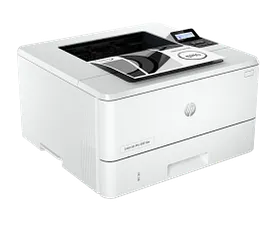
HP LaserJet Pro 4001dw
Fast B&W with Wi-Fi + Ethernet—straightforward to re-add after OS updates.
- Auto 2-sided
- Dual-band Wi-Fi + Ethernet
- Strong office reliability
About the item
- Great for forms and reports
- Stable networking options
- Simple queue management
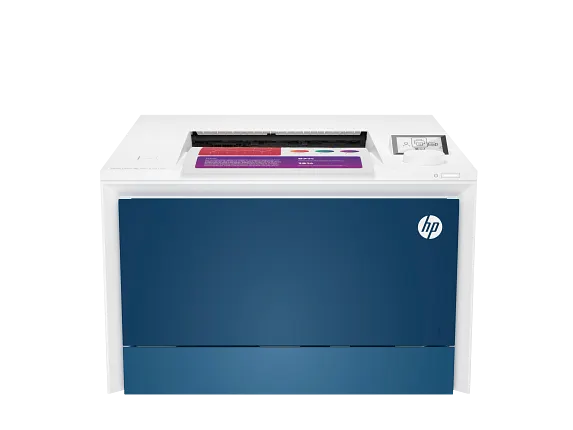
HP Color LaserJet Pro 4201dw
Solid color laser platform with modern connectivity and easy re-adds.
- Auto duplex color printing
- Wi-Fi + Ethernet
- Great for charts & proposals
About the item
- Business-ready color output
- Clear control panel
- Good for small teams
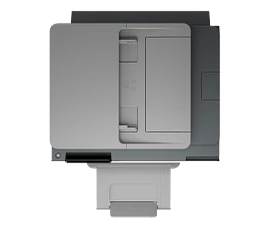
HP OfficeJet Pro 9135e
Modern AIO with strong guided setup—helpful when software changes.
- Print/scan/copy/fax + ADF
- Self-healing Wi-Fi
- Auto duplex
About the item
- Great for mixed work
- Clear on-device prompts
- Compact footprint
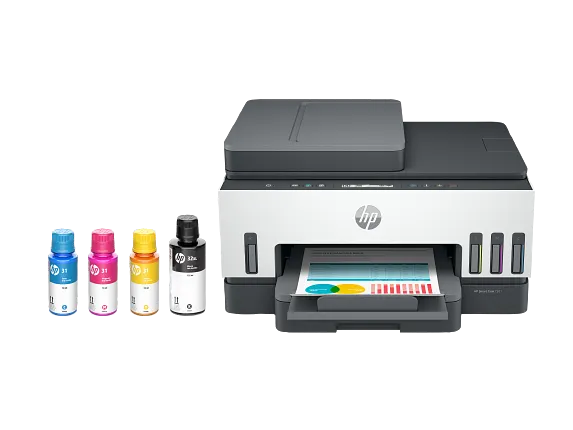
HP Smart Tank 7301
Low running cost with guided setup—good for frequent color printing.
- Dual-band Wi-Fi
- High-capacity bottles
- Good long-term value
About the item
- Great for home and school
- Clean refill design
- Consistent color output
Quick Steps Before You Call or Chat
- Write down your printer model, your Windows/macOS version, and the exact symptom (offline, queue stuck, app error).
- If networked, confirm the printer is on the same Wi-Fi and note its current IP address (from printer panel or network report).
- Windows: restart the Print Spooler and clear stuck jobs, then re-add the printer.
- macOS: remove the old printer queue and add again using the recommended method (often AirPrint).
- Confirm the printer is not paused and the correct device is set as default.
Frequently Asked Questions
Are you HP corporate support?
No. We are not HP corporate support. We provide product guidance and assisted purchase help.
Do you use remote access?
No. We provide safe, step-by-step guidance without remote access. You control the steps on your device.
Do you guarantee a fix?
No. Results vary by model, OS version, network environment, and device condition. We’ll recommend the best next step based on what you see.
Can you help me choose a replacement if updates keep breaking printing?
Yes. If replacement makes sense, we’ll compare options and direct you to official product pages.
Eprinter Shoppe USA — HP Authorized Partner. Trademarks belong to their respective owners.